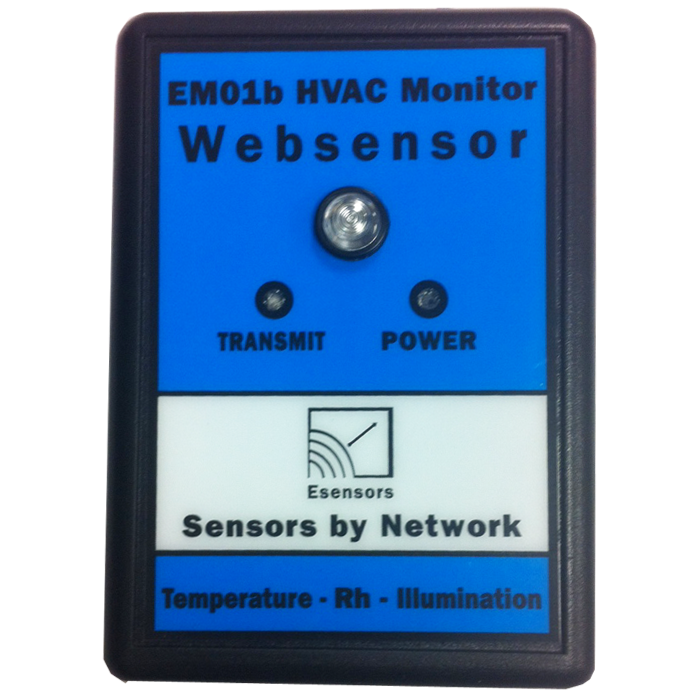
How to Connect to the Sequoia EM01b Web Sensor

This sensor is used by RemMon Monitoring System (Temperature/Humidity/Illumination) plugin.

To connect your Sensormetrix EM01b Websensor, use a standard Ethernet connection and configure the device’s IP address through a web browser.

Connection Methods

1. Connecting Directly to a PC

  • Cable needed: A crossover Ethernet cable (typically the solid grey cable with black connectors included in the package).
  • Procedure: Connect one end to the Websensor’s Ethernet port and the other to your PC’s network interface card (NIC).

2. Connecting to a Network (LAN / Hub / Switch)

  • Cable needed: A straight-through Ethernet patch cable (typically blue, included in the package).
  • Procedure: Connect the Websensor to a hub or switch port and ensure your PC is on the same network.

Configuration Steps

  1. Default IP Address: The default IP is 192.168.254.102.
  2. Access Web Interface: Open your browser and navigate to http://192.168.254.102.
  3. Program a New IP Address (if needed):
    Use this command format in your browser:
    http://192.168.254.102/index.html?eipaaabbbcccddd
    Replace aaabbbcccddd with your desired new IP, using three digits per octet (e.g. 192.168.10.20 → 192168010020).
  4. Confirm Connection: After setting the new IP, access the sensor via its updated address. You can also test using the ping command.

Command Line Configuration Example

When changing settings via a Linux or macOS terminal, use curl commands as shown below:

curl "http://192.168.254.102/index.html?eip192168001050"
curl "http://192.168.254.102/index.html?esm255255255000"
curl "http://192.168.254.102/index.html?ega192168001001"
curl "http://192.168.254.102/index.html?esv"   # store to flash
curl "http://192.168.254.102/index.html?er"    # reset the device
    

After reboot, the sensor should be reachable at its new IP address.

For more detailed instructions or troubleshooting, refer to the official Sequoia documentation or online resources such as ManualsLib or EEsensors.com.


How to Connect to the Sequoia EM01b Web Sensor

This sensor is used by RemMon Monitoring System (Temperature/Humidity/Illumination) plugin.

To connect your Sensormetrix EM01b Websensor, use a standard Ethernet connection and configure the device’s IP address through a web browser.

Connection Methods

1. Connecting Directly to a PC

  • Cable needed: A crossover Ethernet cable (typically the solid grey cable with black connectors included in the package).
  • Procedure: Connect one end to the Websensor’s Ethernet port and the other to your PC’s network interface card (NIC).

2. Connecting to a Network (LAN / Hub / Switch)

  • Cable needed: A straight-through Ethernet patch cable (typically blue, included in the package).
  • Procedure: Connect the Websensor to a hub or switch port and ensure your PC is on the same network.

Configuration Steps

  1. Default IP Address: The default IP is 192.168.254.102.
  2. Access Web Interface: Open your browser and navigate to http://192.168.254.102.
  3. Program a New IP Address (if needed):
    Use this command format in your browser:
    http://192.168.254.102/index.html?eipaaabbbcccddd
    Replace aaabbbcccddd with your desired new IP, using three digits per octet (e.g. 192.168.10.20 → 192168010020).
  4. Confirm Connection: After setting the new IP, access the sensor via its updated address. You can also test using the ping command.

Command Line Configuration Example

When changing settings via a Linux or macOS terminal, use curl commands as shown below:

curl "http://192.168.254.102/index.html?eip192168001050"
curl "http://192.168.254.102/index.html?esm255255255000"
curl "http://192.168.254.102/index.html?ega192168001001"
curl "http://192.168.254.102/index.html?esv"   # store to flash
curl "http://192.168.254.102/index.html?er"    # reset the device
    

After reboot, the sensor should be reachable at its new IP address.

For more detailed instructions or troubleshooting, refer to the official Sequoia documentation or online resources such as ManualsLib or EEsensors.com.